

Paperly
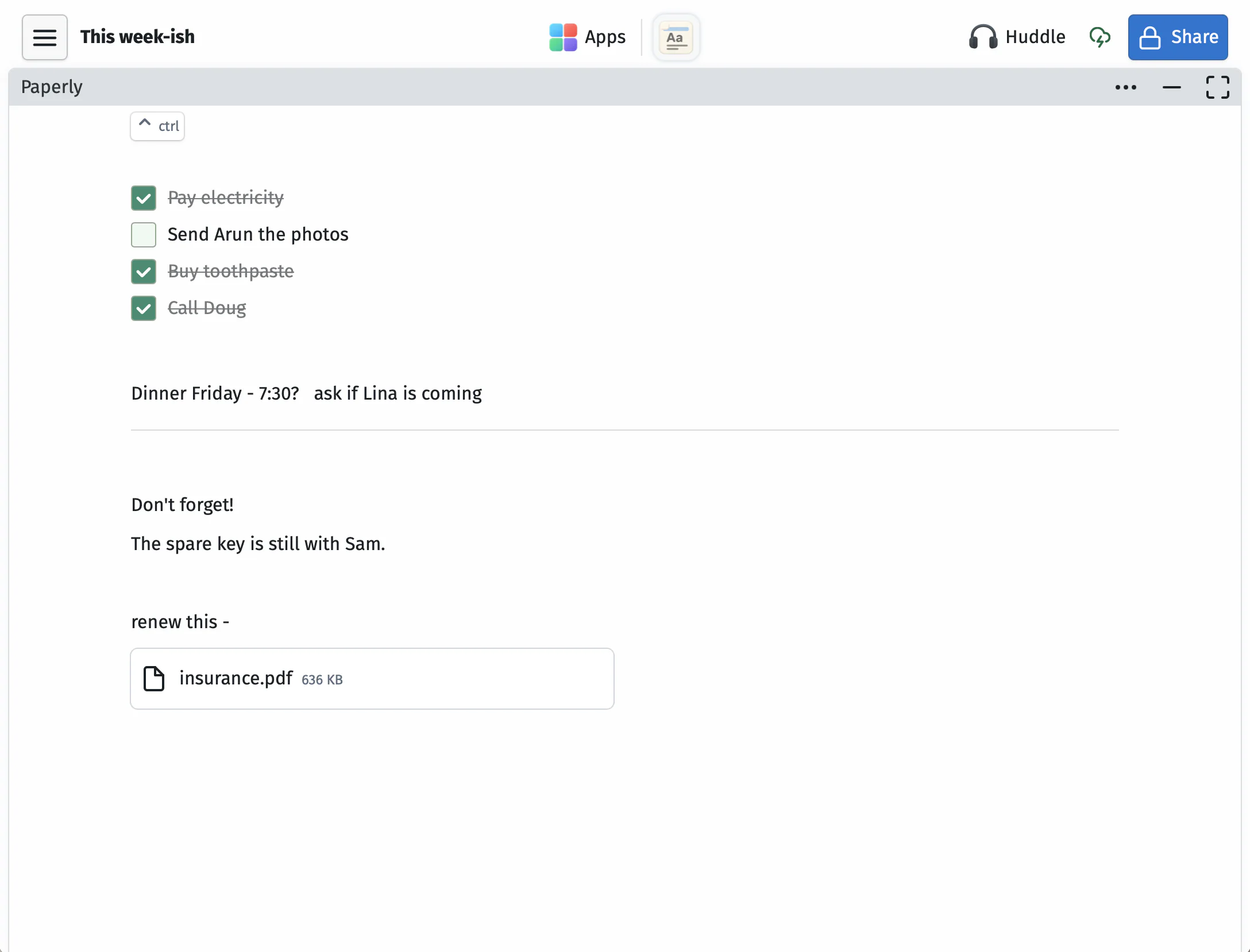
Writing, notes, and todos
What you can do
Jot down thoughts
Capture an idea, draft a plan, or turn a thought into a checklist.
Write together
Share the space link and collaborate live with the people already in the project.
Drop in files
Attach files and images by dropping them right into the page.
Questions
Can I add files to a Paperly page?
Yes. Drop a file directly into the page.
Can I export my notes?
Yes. Press cmdS to instantly download your notes as a Markdown file. This works in several other apps too.
Can multiple people edit at the same time?
Yes, it's live. Share the space link and everyone can work on the same page together.
Does it work with other apps in my space?
Now you're thinking like a SupaKit user. Paperly is your scribble-pad. Everyone needs one, whatever they're doing. In a Huddle? Take notes alongside. In a classroom? Same thing. The space link stays the same, so your notes and meetings pick up right where you left off.
Does it work offline?
Your content from previous visits will generally be available. New content generation and cloud-dependent features may be limited. Editing shared spaces while offline isn't recommended, especially if others are collaborating in them. For personal spaces, you should be fine.
How do I share my space?
In your open space, click the blue share button at the top right. From there, select an access level (editor or view-only), then copy the invite link or show a QR code. You can regenerate the link anytime to invalidate previous ones.
Share with colleagues, students, or friends. They don't need to be in your organization.
Do my collaborators need an account?
No. Share the invite link from your space and they can join right from their browser as a guest, or by signing in with Google or Email. They don't need a paid plan to collaborate with you.
Is my data private?
SupaKit is designed to be privacy focused. Content in your spaces is end-to-end encrypted between participants. We recommend setting your own keychain password in Settings after creating your account. Read our security page for more details.
Can I use it solo, without collaborators?
Absolutely. We use it that way ourselves, mostly for our own notes, travel-plans, projects, and whatever we're building. Collaboration is there when you need it or want to share it.
Do I need to install anything?
No. SupaKit runs in your browser. It opens with a link, no downloads or installs, for you or anyone you share a space with. You can pin it to your dock or home screen for quicker access and a dedicated window. It stays safely sandboxed in your browser.
Can I control space access for collaborators?
Yes. You can control this from the share button at the top right of your space, where you'll see all collaborators and their access levels. Each person can either have full write and edit access, or view-only, meaning they can see everything but can't make changes.
How many collaborators can I have?
For apps that involve streaming (e.g. Huddles, Screenshare, CloudBrowser) active participants are capped at about 5 per space on Standard, and up to 10 on Pro. For everything else, you can have quite a few more collaborators in a space without hitting limits.
We're still experimenting with these knobs. SupaKit is designed for active collaboration among smaller groups, not webinars or large calls. It may be able to handle a large number of participants, but the experience is tuned for smaller groups, whether that's a team, a classroom, a workshop, or a few people working together.
Limits are based on sustained usage, not occasional bursts. If you go over briefly, it won't be an issue.